HyperQB Manual
HyperQB is a push-button, bounded model checker for verifying hyperproperties. Hyperproperties are systems-wide properties that express the behavior of system as a whole rather than the behavior of individual execution traces.
Installation
MacOS Binary installation
Source code installation
Modeling Languages
HyperQB currently accepts input models in two languages:
Working with Yosys
Yosys is an open-source framework for Verilog synthesis available here. HyperQB leverages Yosys to translate Verilog designs into SMT formulas suitable for model checking. To use Verilog models with HyperQB, users need to create Yosys build scripts that specify how to synthesize the Verilog code into SMT format.
Note
Below is a general guide for creating Yosys build scripts for HyperQB. Specific commands and options may vary based on the Verilog design and the desired verification properties.
- In order to create a Yosys build script for HyperQB, users should follow these general steps:
Read the Verilog Design: use the read_verilog command to load the Verilog files into Yosys.
Prepare the Design for Verification: use the prep command to prepare the design for verification. This may include optimizations and transformations to simplify the design. The options -top <TOP_MODULE> and -flatten are often used to specify the top-level module and flatten the hierarchy when working with multiple modules.
Write SMT Output: use the write_smt2 command to generate the SMT formula. Specify the output file path where the SMT formula will be saved. The option -stdt must be included to ensure compatibility with HyperQB.
Here is an example of a simple Yosys build script for HyperQB from the FPU2 benchmark:
read_verilog -pwires benchmarks/verilog/divider/divider.v
prep -top divider -flatten
write_smt2 -stdt -wires model.smt2
Specification Languages
HyperLTL & A-HLTL grammar
HyperQB supports hyperproperty specifications expressed in two logical systems: HyperLTL and A-HLTL. The following is the formal grammar for both specification languages supported by HyperQB, implemented using the pest parser generator allowing for modular and extensible parsing of formulas:
WHITESPACE = _{ " " | "\t" | "\r\n" | "\n" }

path_formula = { ("Forall" | "Exists") ~ ident ~ "." ~ form_rec }
form_rec = { path_formula | traj_formula | inner_hltl }
traj_formula = { ("A" | "E") ~ ident ~ "." ~ ahltl_form_rec }
ahltl_form_rec = { traj_formula | inner_altl }

inner_hltl = { hequal }
inner_altl = { aequal }

hequal = { himpl ~ ("=" ~ hequal)? }
himpl = { hdisj ~ ("->" ~ himpl)? }
hdisj = { hconj ~ ("|" ~ hdisj)? }
hconj = { huntl ~ ("&" ~ hconj)? }
huntl = { hrels ~ ("U" ~ huntl)? }
hrels = { hfactor ~ ("R" ~ hrels)? }
hfactor = { unop ~ hfactor | "(" ~ inner_hltl ~ ")" | hltl_atom }
hltl_atom = { ident ~ "[" ~ ident ~ "]" | constant | number }


aequal = { aimpl ~ ("=" ~ aequal)? }
aimpl = { adisj ~ ("->" ~ aimpl)? }
adisj = { aconj ~ ("|" ~ adisj)? }
aconj = { auntl ~ ("&" ~ aconj)? }
auntl = { arels ~ ("U" ~ auntl)? }
arels = { afactor ~ ("R" ~ arels)? }
afactor = { aunop ~ afactor | "(" ~ inner_altl ~ ")" | altl_atom }
altl_atom = { ident ~ "[" ~ ident ~ "]" ~ "[" ~ ident ~ "]" | constant | number}

aunop = { "G" | "F" | "~" }
unop = { "G" | "F" | "X" | "~" }
ident = @{ ASCII_ALPHA ~ (ASCII_ALPHANUMERIC | "_" | ".")* }
constant = {"TRUE" | "FALSE"}
number = @{ ASCII_DIGIT+ | "#b" ~ ("0" | "1")+ }

// Entry point for the parser
formula = _{ SOI ~ path_formula ~ EOI }
Running HyperQB
GUI-based (standalone and web-based)
HyperQB provides a user-friendly graphical interface for users who prefer not to use the command line. The GUI version of HyperQB can be run as a standalone application or accessed via a web-based interface.
This section provides instructions on how to use the GUI version of HyperQB, including how to load models, specify properties, and view results.
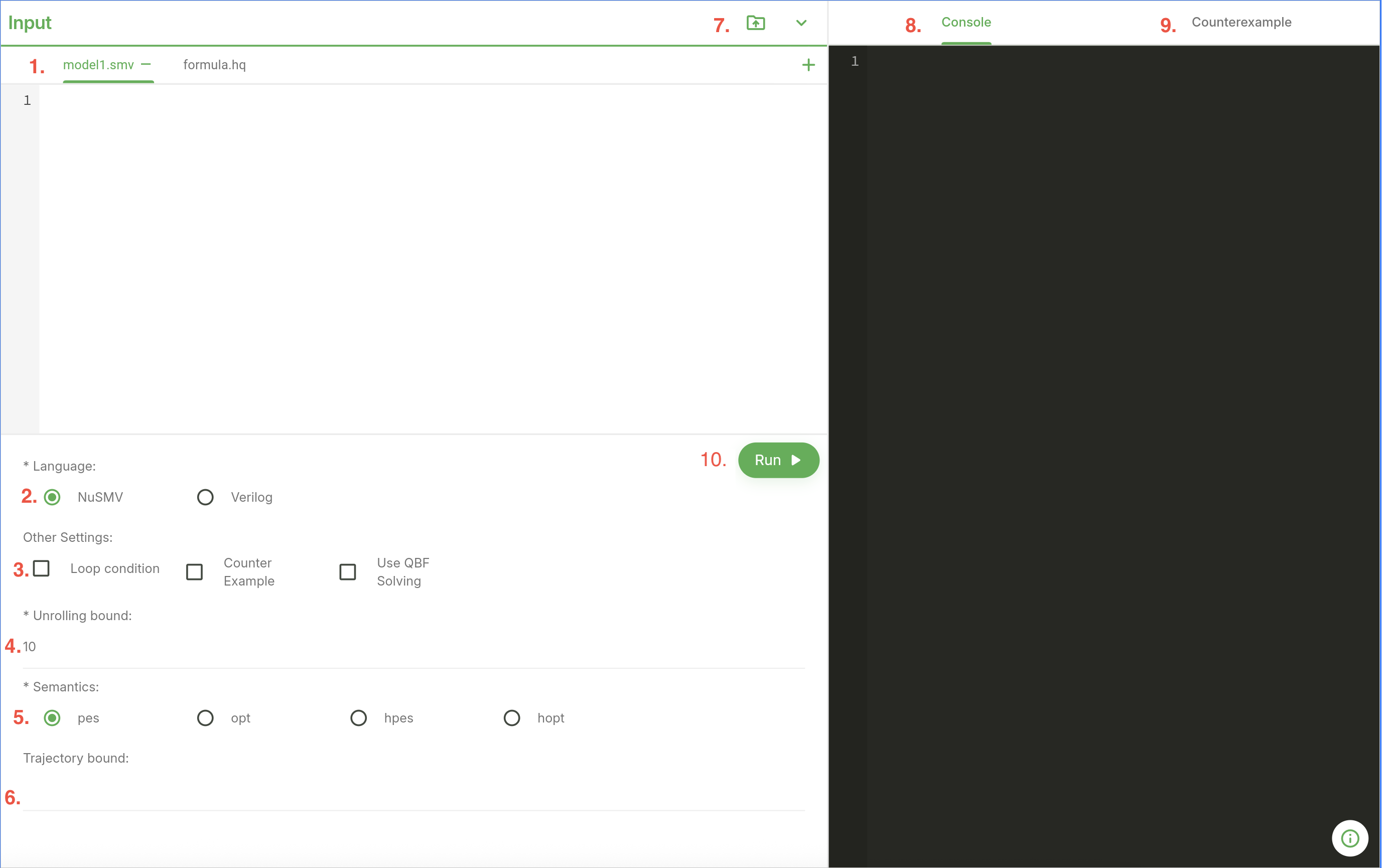
File Management: Contains the files neeeded for verification. Users can load NuSMV files or Yosys build scripts and verilog designs depending on the model language selected. The formula file must also be loaded here.
Language Selection: Users can select the input model language (NuSMV or Verilog) using radio buttons. The selection will determine the type of files that can be loaded.
Options Panel: Users can specify use of loop conditions (equivalent to
-l), counterexample generation (equivalent to-c), and QBF solver usage (equivalent to-q) using checkboxes.Unrolling Bound: Users can specify the unrolling bound (equivalent to
-k) using a text input field.Semantics Selection: Users can select the semantics (
pes,opt,hpes,hopt) using a dropdown menu (equivalent to-s).Trajectory Bound: Users can specify the trajectory bound (equivalent to
-m) using a text input field.File Upload and Benchmark Selection: Users can upload files directly or select from predefined benchmarks for quick testing. Note that selecting the input language will filter the available benchmarks accordingly.
Console Output: Displays the output of the verification process, including results and any error messages. Displays the same information as the command-line output.
Counter Example Visualization: If counterexample generation is enabled and a counterexample is found, this section will display the counterexample trace for analysis graphically.
Run Button: Initiates the verification process with the specified settings and loaded files.
Note
If Verilog is selected as the input model language, the GUI will adjust to accommodate Verilog-specific inputs:
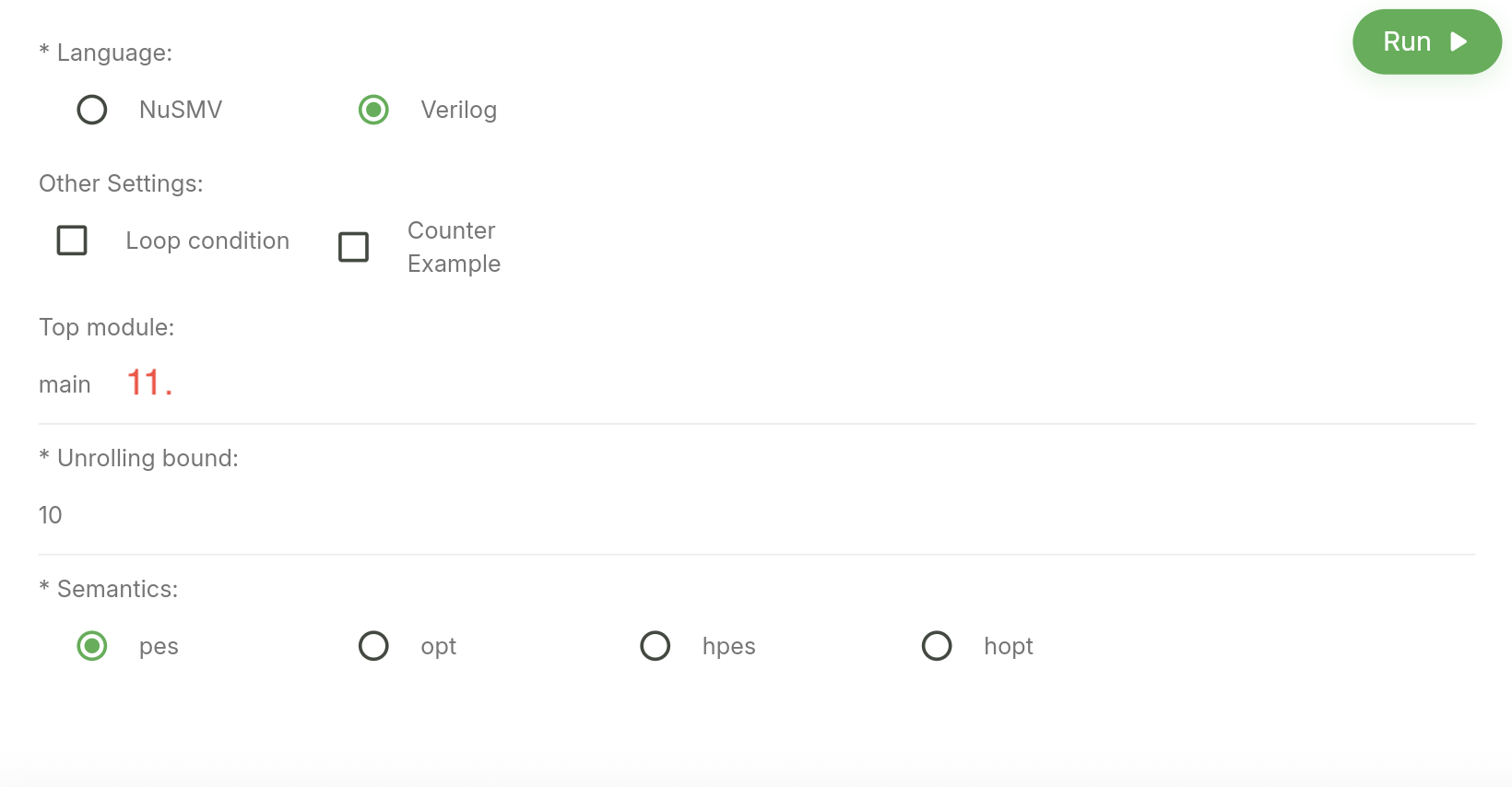
Top Module Input: When using Verilog models, users must specify the top module name (equivalent to
-t) using a text input field. This field only appears when the Verilog language option is selected.
Command-line usage
This section provides a comprehensive overview of the command-line interface for HyperQB, detailing the various options and modes available for users to effectively utilize the tool. For details on input model languages and specification languages, please refer to the respective sections in this manual.
Synopsis
hyperqb -f <FORMULA> -n <FILE>... -k <K> -s <SEM> [-m <B>] [-c] [-q]
hyperqb -f <FORMULA> -n <FILE>... -l
hyperqb -f <FORMULA> -v <FILE>... -t <TOP_MODULE> -o <SMT2_FILE> -k <K> -s <SEM> [-m <B>] [-c] [-q]
Modes
Exactly one mode must be selected:
-l, --loop_conditions: Use loop conditions instead of unrolling.-k, --unrolling_bound <K>with-s, --semantics <SEM>: Use bounded unrolling.
Inputs
Exactly one input model lanuage must be selected:
-v, --verilog <FILE>...: Yosys build file(s). Requires-tand-o.-n, --nusmv <FILE>...: NuSMV file(s).-f, --formula <FILE>
Required. Hyperproperty formula file. (Path)
Option Details
-f, --formula <FILE>Required. Hyperproperty formula file. (Path)
-v, --verilog <FILE>...Yosys script(s). One or more paths, the number of paths provided should match the number of quantifiers in the provided formula file. Requires --top and --yosys_output. (Path)
-n, --nusmv <FILE>...NuSMV file(s). One or more paths, the number of paths provided should match the number of quantifiers in the provided formula file. (Path)
-t, --top <TOP_MODULE>Top module name, this should match the module specified in the yosys script files. (String)
-o, --yosys_output <SMT2_FILE>Location of SMT2 file if using a build file, this should match the path specified in the yosys scripts. (Path)
-l, --loop_conditionsUse loop conditions instead of unrolling. (Flag)
-k, --unrolling_bound <K>Unrolling bound. (Unsigned integer)
-s, --semantics <SEM>Choice of semantics: one of pes, opt, hpes, hopt. (String)
-m, --trajectory_bound <B>Trajectory bound. (Unsigned integer)
-c, --counterexampleGenerate counterexample if available. (Flag)
-q, --qbf_solverUse QBF solver (default is Z3). (Flag)
Examples
hyperqb -f formula.hq -v build.ys build.ys -t main -o model.smt2 -k 15 -s pes -cVerilog with model with 2 models and counterexample generation
hyperqb -n benchmarks/loop_conditions/mm/mm1.smv benchmarks/loop_conditions/mm/mm2.smv -f benchmarks/loop_conditions/mm/mm.hq -lNuSMV model with 2 models using loop-conditions mode